You sit down at nine to quickly answer two emails. The next time you look up, it is twenty to eleven, the report you meant to start is still a blank page, and you could not say where the morning went.
Most of us have tried to fix this with a phone. Set a timer, put it face down, get to work. The trouble is that picking up the phone to set a timer is also picking up the phone. One notification later, the timer is the last thing on your mind.
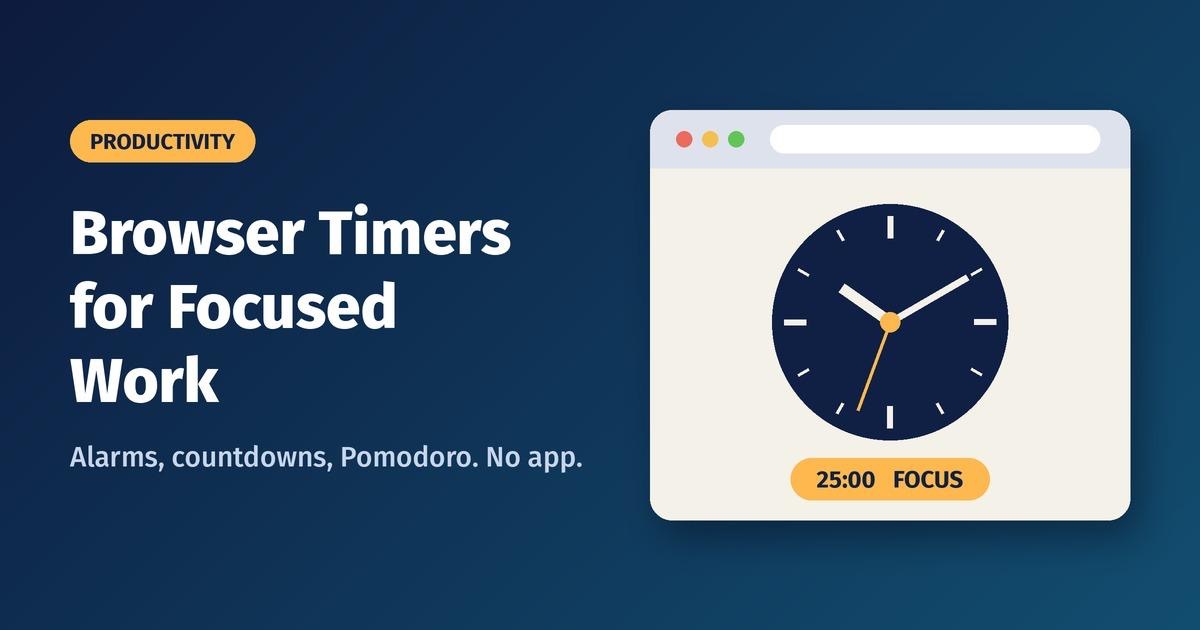
There is a simpler way to keep time while you work, and it is already open in front of you: a browser tab. Here is which kind of timer suits which job, how to use the Pomodoro method without overthinking it, and the few things that can go wrong.
Why a browser tab beats another app
A timer that lives in a tab asks nothing of you. There is nothing to install and no account to create, so it works on the office laptop where you cannot add software, on a library computer, or on a friend’s machine. When you are done you close the tab and it is gone.
Sites like OnlineTimeNow, a free online alarm clock and timer that runs in the browser, keep the usual tools in one place: an alarm, a timer, a countdown and a Pomodoro timer. You open the page, set it, and go back to what you were doing.
It also keeps the clock on the same screen as the work. You do not have to reach for another device, which is usually where the distraction starts.
Pick the right tool for the job
These four get mixed up all the time, and using the wrong one is a small daily annoyance.
- Alarm. For a fixed time on the clock. “The call is at 2:30.” You set 2:25 and forget about it.
- Timer. For a length of time. “I will give this draft 40 minutes.” It does not matter what time it is now.
- Countdown. For a date. How many days are left until the deadline, the launch or the exam.
- Pomodoro timer. For a repeating cycle of work and rest, so you do not have to reset anything between rounds.
If you catch yourself doing sums in your head, such as what time it will be two hours and forty-five minutes from now or how long you actually spent on a task, a time calculator will add and subtract the hours and minutes for you.
Pomodoro, without the fuss
The Pomodoro Technique was worked out by Francesco Cirillo in the late 1980s, and the idea has not needed much updating. You work on one thing for 25 minutes, rest for five, and after four rounds you take a longer break of 15 to 30 minutes.
To try it today:
- Choose one task. Not three. One.
- Start a 25-minute round and work only on that task.
- When it rings, stop, even if you are in the middle of a sentence. Stand up, look out of a window, get some water.
- After five minutes, start the next round.
Two habits make it stick. Keep a scrap of paper next to you and write down anything that pops into your head (“reply to Sam”, “book the dentist”) instead of acting on it. And if somebody interrupts you for more than a moment, do not pretend the round still counts. Start it again.
The 25 minutes are a starting point and not a law. Writing and programming often need longer to get going, so plenty of people work for 50 minutes and rest for ten. If you keep ignoring the bell, the round is too short for the kind of work you do.
Three small ways to use timers during the day
- Meetings. Set an alarm five minutes before the start so you arrive with your notes open. Then run a timer for the length of the meeting and say so at the beginning. People wrap up faster when they can see the time.
- Email. Give it two fixed slots of 20 minutes instead of leaving the inbox open all day. When the timer ends, close the tab.
- Breaks. Time those too. A five-minute break without a timer has a way of becoming twenty-five.
If you work from home these small rules matter even more, because nobody else is setting the rhythm of the day for you. This list of habits for remote workers has more ideas along the same lines.
When the other person is in another time zone
Before you set an alarm for a call with someone abroad, check whose three o’clock you agreed on. It sounds obvious and it still goes wrong, usually in the weeks when one country has changed its clocks and the other has not. A timezone converter settles it in a few seconds. Convert first, then set the alarm in your own local time.
What can go wrong
Browser timers are simple, and they fail in simple ways.
- You closed the tab. No tab, no timer. Pin it if your browser lets you.
- The computer went to sleep. A sleeping laptop does not ring. For longer sessions keep it plugged in or adjust the sleep setting.
- The sound was off. Check the system volume and whether your headphones are still connected. Play the test sound once if there is one.
- You set too many. Six alarms a day soon turn into background noise. Keep the ones that protect something important.
For the same reasons, do not use a browser alarm to wake up for a flight. It is a tool for the working day.
FAQ
Does the timer keep running if I switch to another tab?
Yes. It keeps counting in the background as long as the tab stays open. You can minimise the window as well.
Do I have to use 25 minutes?
No. Start there, then lengthen or shorten the rounds until the bell stops annoying you and starts helping.
Do I need to sign up for anything?
With a decent tool, no. If a site wants your email address before it will count to twenty-five, find another one.
Does this work on a phone?
It does, but phones are quick to put background tabs to sleep, so the built-in clock app is more reliable there. Browser timers are at their best on a laptop or desktop.
Conclusion
You do not need a new app or a new system to stop losing your mornings. A tab with a timer in it, one task at a time and a real break when the bell goes will take you most of the way. Try it for a single afternoon and see how much of the list is left at five o’clock.

Comments 0
No comments yet. Start the conversation!